AI Background Remover
Lift your subject off the background and keep a clean transparent PNG.
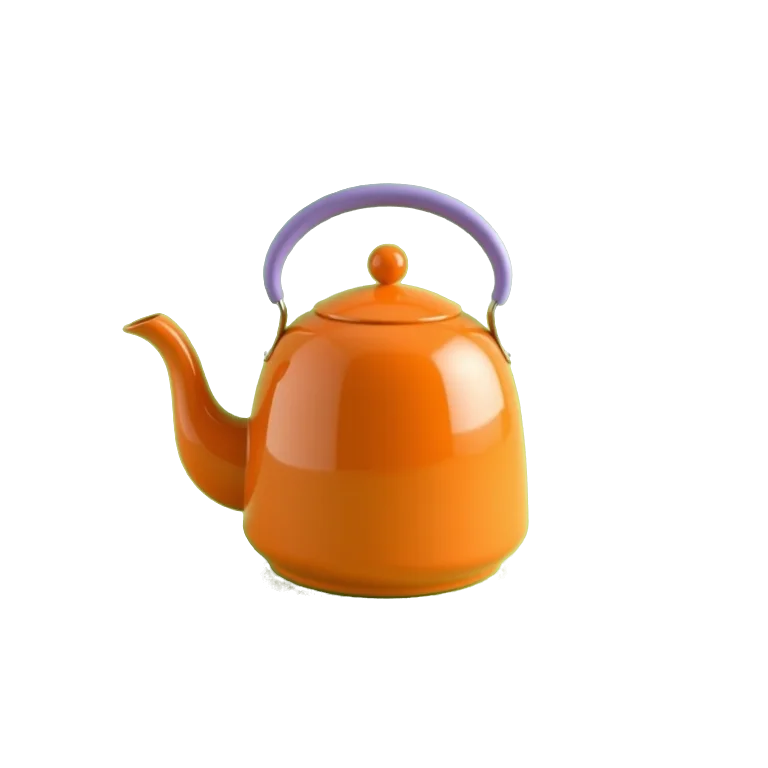
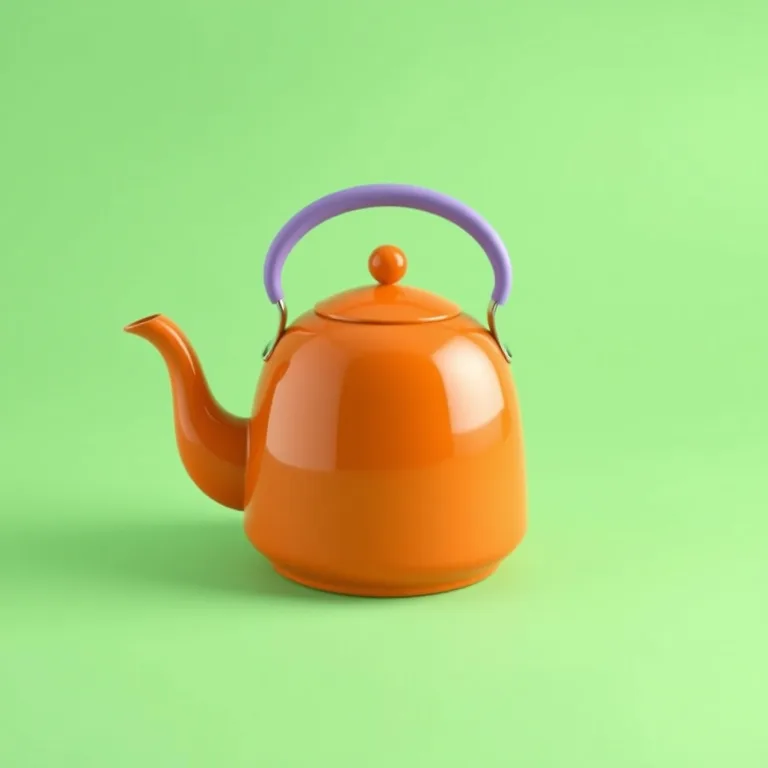
Example: the backdrop becomes transparent.
Remove a background
Turn an existing photo into a transparent cutout
How to use this tool
- Upload a JPG, PNG or WebP image up to 20 MB. Choose a photo with a clear subject.
- Sign in, check the displayed credit cost and run background removal.
- Inspect the cutout around the subject, then download the transparent PNG for your next layout.
Ways to use your result
Product photo cutouts
Isolate an item from an existing photograph so you can place the cutout in a catalog or a new layout. This tool removes the background; it does not create a new product photo.
Avatars and portraits
Separate a person from the background before placing the portrait into a profile layout or design.
Slides and compositions
Download a transparent subject for a slide, document or collage. Add a new backdrop in your design editor.
Choose a photo with a clear subject
An AI background remover separates the main subject from the surrounding image. Start with a photo where the subject is in focus and distinct from the background. Good lighting, visible edges and enough space around the subject make the result easier to inspect and reuse. If several objects overlap, the tool may keep more than you intended or remove a detail you wanted. Try a simpler source image before spending several attempts on the same difficult scene.
Prepare product photos for a new layout
For a product cutout, photograph the whole object and leave room around its edges. Avoid a background that is almost the same color as the product. Strong reflections, transparent packaging and very thin handles can make separation harder. After removing the background, inspect the outline at a useful zoom level. A transparent cutout can be placed into a shop graphic or presentation, but it does not automatically create a new studio background, retouch the product or correct the lighting.
Check hair, fur and other fine edges
Hair, animal fur, lace and foliage have many small edges. The AI may leave some background between fine details or remove strands near an edge. Look closely at these areas rather than judging only the center of the subject. A cutout that looks clean on the checkerboard can still show a halo on a dark or bright background. If an important detail is missing, try a source photo with better contrast or finish that edge in a dedicated image editor.
Understand transparent PNG downloads
The checkerboard behind a cutout is a preview of transparency; it is not meant to become a new background in your image. Download the PNG result to keep the transparent areas. Some image viewers show transparency as white or black, so test the file over a colored background in your layout tool when you are unsure. Converting the file to JPEG removes transparency. Keep the PNG original if you plan to reuse the same subject in several different designs.
Use cutouts in slides, avatars and compositions
A cutout gives you flexibility to arrange an existing subject with text, a new background or other visual elements. For a presentation, leave space around the subject so it does not crowd the slide. For an avatar, check how the face and hair fit inside the final circular crop. For a product composition, check proportions and shadows after placing the PNG. Background removal isolates an existing subject; it does not recover parts of the subject that were outside the original photo.
Review formats, file size and credit cost
Upload one JPG, PNG or WebP image up to 20 MB. Sign in and check the credit cost before running background removal. Keep a copy of your original photo so you can compare the cutout and try a different crop if needed. A successful task returns a transparent PNG and appears in your task history. Avoid uploading private documents or images you are not comfortable processing with an online tool. Use Text to Image when you need a completely new scene instead of a cutout.
Frequently asked questions
- Which image files can I upload?
- Upload one JPG, PNG or WebP image up to 20 MB. Other formats need to be converted before uploading.
- Can I remove a white background and get a transparent PNG?
- Yes. You can upload a photo with a white or another background and download the cutout as a PNG with transparency. The checkerboard in the preview represents transparent areas; it is not a new background.
- Is background removal free?
- You need to sign in and have enough credits. Each image costs 1 credit, shown before you run the tool. See the pricing page for credit packs.
- What if hair or fine edges do not look right?
- Hair, fur, glass and low-contrast edges can need manual touch-up in an image editor. Inspect the downloaded PNG before using it. Re-running the same image does not guarantee a better cutout.
Continue your creative workflow
- Generate a new image from text
Need a new visual rather than editing an existing photo? Open Text to Image and describe the image you want.
- Compare credit packs
- Explore all tools