 HelloMona
AI Image Editor
Upload an image and describe your changes to create a new version.
Edit a detail, keep the composition

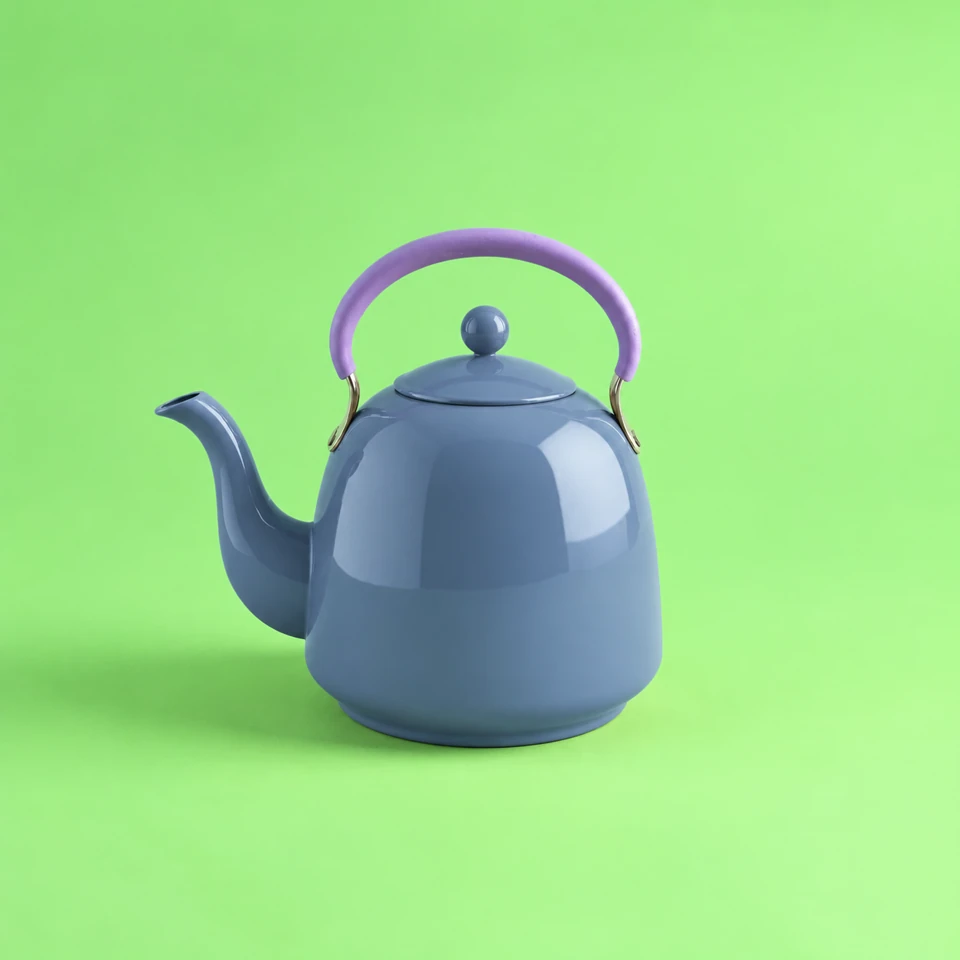
How to edit an image with AI
How to use this tool
- Upload a JPG, PNG or WebP up to 8 MB, or open one of your works with Continue editing.
- Describe the change in plain words, choose a model, and keep the original shape or pick a new ratio.
- Check the credit cost, generate, compare before and after, then download or keep editing.
Ways to edit
Change the scene
Swap the background, move the subject somewhere new, or change the season and lighting.
Restyle an image
Turn a photo into watercolor, film or illustration while keeping its subject.
Refine a result
Improve a generated image step by step. Every version is saved separately.
Output size and versions
The available image models offer 1K or 2K output; choose a supported size before you start. Each prompt generates a new flat image while keeping earlier versions and the original. This is not a layer or brush editor: the model may alter details outside the change you described.
Downloading your edit
Download saves the original file the model returned for that version. Its format depends on the result.
Write edit instructions that work
Say what should change and what should stay. One clear change per run usually gives a cleaner result than many at once.
- Replace the background with a sunlit beach at golden hour; keep the person and their clothes unchanged.
- Make it look like a soft watercolor painting with the same composition.
Frequently asked questions
Is my original image changed?
No. Each edit creates a new image and keeps the original as it was. Both stay private in Gallery, where you can return to any version.
Which files can I upload?
One JPG, PNG or WebP image up to 8 MB per edit. You can also start from an image you already made in your account.
Can I change the shape of the image?
Keep the original shape, or choose 1:1, 4:3, 3:4, 16:9 or 9:16 when the selected model supports it. Shapes a model can't make are shown as unavailable.
How many credits does an edit cost?
Each new edit is a separate charged task. The cost depends on the model and output option and appears before you start. Confirmed failures return credits; a completed edit you dislike is not a failed task.
Continue your creative workflow
Product information maintained by HelloMona · Last reviewed: · Contact